
Download Movavi Screen Capture Studio – Free Trial, Secure, Powerful Screen Recording & Video Editing Tool for Windows & Mac
Movavi Screen Capture Studio is a top-tier screen recording and video editing solution designed for users who need reliable, high-quality tools for creating tutorials, presentations, online courses, and engaging social media content. With its intuitive interface and robust feature set, this software stands out as a two-in-one powerhouse, combining seamless screen capture with professional-grade video editing. Whether you're a teacher, marketer, remote support specialist, or content creator, Movavi Screen Capture Studio delivers everything you need in one secure, easy-to-use package.
The software supports both Windows and Mac platforms, ensuring broad compatibility. You can download the free trial version from the official website to experience its full functionality before committing to a purchase. With advanced recording options like mouse and keyboard tracking, real-time annotations, and support for multiple output formats—including MP4, AVI, and MOV—this tool ensures your videos look polished and professional.
Plus, direct upload capabilities to YouTube, Facebook, and Vimeo make sharing effortless.
Key Features of Movavi Screen Capture Studio
One of the most compelling reasons to choose Movavi Screen Capture Studio is its comprehensive suite of features tailored for both beginners and advanced users. The core functionality centers around high-fidelity screen recording, where every pixel, cursor movement, and keystroke is captured with precision. This makes it ideal for creating detailed instructional videos or troubleshooting guides. The software allows you to record your entire screen, a specific window, or a custom region—giving you full control over what’s captured. What sets it apart from basic screen recorders is the ability to highlight text, draw freehand annotations, and add digital comments in real time, which enhances clarity in tutorials and training materials.
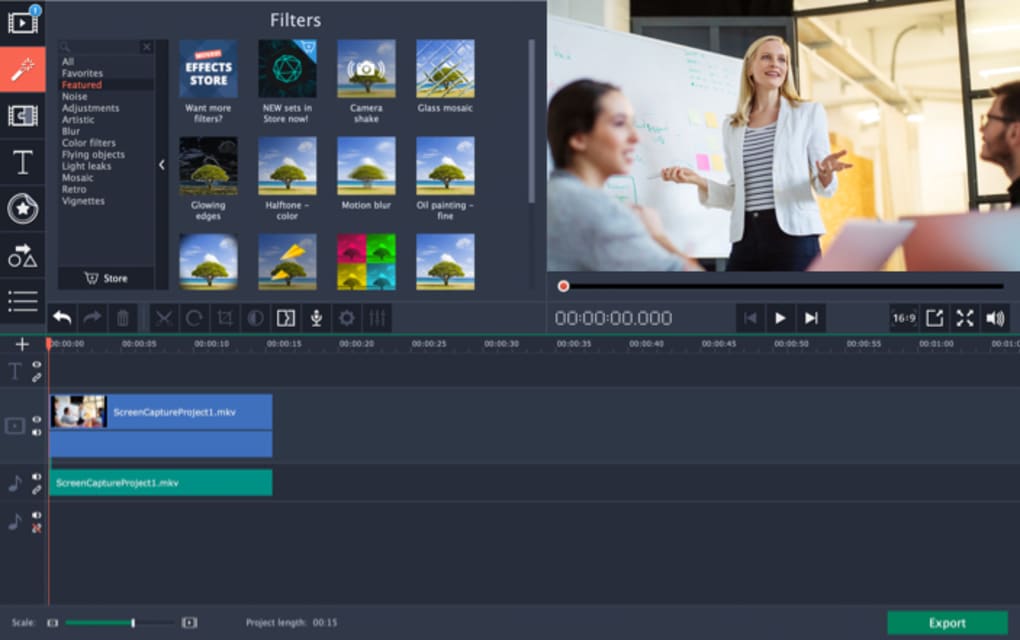
Beyond recording, Movavi Screen Capture Studio integrates a full-featured video editor. You can trim clips, merge multiple recordings, apply transitions, and use a wide range of visual filters to achieve a cinematic look. The timeline-based editor is user-friendly and responsive, even with large video files.
You can add background music, insert titles, adjust brightness and contrast, and even include voiceovers directly within the software. For content creators, the ability to export in multiple formats is a game-changer—whether you're preparing a video for a website, social media, or a presentation, Movavi supports it all. Additionally, the built-in upload feature allows direct sharing to major platforms like YouTube, Facebook, and Vimeo, eliminating the need for third-party tools.
Another standout feature is the customizable recording settings. You can adjust frame rate, resolution, and audio input sources independently, ensuring optimal performance and file size. The software also includes a built-in audio mixer, allowing you to balance microphone and system audio levels.
For remote collaboration, the recorded videos can be used to demonstrate technical issues clearly and effectively. Whether you're recording a software demo, a webinar, or a personal vlog, Movavi Screen Capture Studio adapts to your workflow. With its secure download process and regular updates, this software remains a trusted choice for professionals and casual users alike.
How to Install and Use Movavi Screen Capture Studio
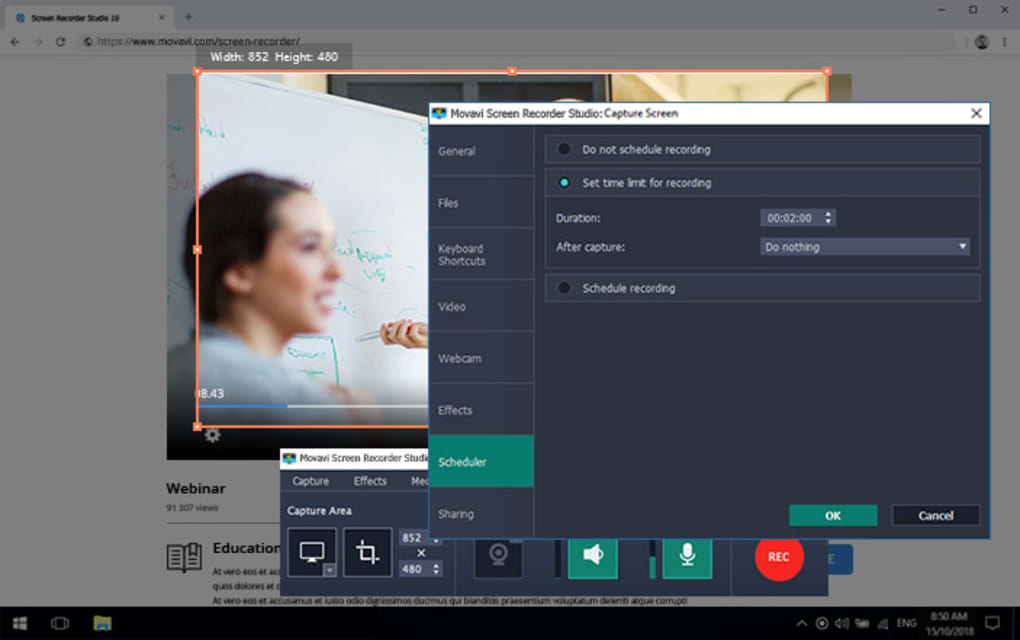
Getting started with Movavi Screen Capture Studio is straightforward, whether you're using Windows or Mac. First, visit the official Movavi website and download the free trial version. The installation process is quick and guided—simply run the installer, accept the license agreement, and follow the on-screen prompts. Once installed, launch the application and choose your recording mode: full screen, window, or custom region. You can also select your audio input—system sound, microphone, or both—ensuring your commentary is captured clearly.
Before starting the recording, take advantage of the customization options. Adjust the frame rate (e.g., 30fps for smooth motion), set the resolution, and enable features like cursor highlighting or keyboard keypress visualization. These options enhance the viewer’s experience, especially in tutorial content.
Click the red record button to begin. During recording, you can pause, resume, or stop at any time. The software runs efficiently in the background, minimizing performance impact on your system.
After recording, the video is automatically imported into the built-in editor. Here, you can trim unwanted sections, add transitions, apply filters, insert text overlays, and include background music. Use the timeline to fine-tune timing and positioning.
When you’re satisfied with the final cut, click “Export” and choose your desired format—MP4, AVI, MOV, or others. You can also directly upload to YouTube, Facebook, or Vimeo with just a few clicks. The entire workflow—from recording to sharing—is streamlined and intuitive, making it perfect for users of all skill levels.
Compatibility & System Requirements
Movavi Screen Capture Studio is available for both Windows 10 and 11 (64-bit) and macOS 10.14 or later, ensuring broad compatibility across modern devices. The software is optimized for both Intel and Apple Silicon Macs, delivering smooth performance on M1 and M2 chips. It requires a minimum of 4 GB RAM (8 GB recommended), 2 GB of free disk space, and a graphics card that supports hardware acceleration for video rendering. While the software is lightweight during recording, editing high-resolution videos (especially 4K) benefits from a more powerful system.
For users on older systems, it’s important to check the official system requirements page to ensure compatibility. The software does not support Linux or older Windows versions like Windows 7 or 8. However, for the vast majority of users, especially those in education, business, and content creation, Movavi Screen Capture Studio is a reliable choice. The installation is virus-free and secure, with downloads coming directly from the official Movavi domain. Regular updates are released to improve stability, fix bugs, and add new features, ensuring your software stays current and secure.
Additionally, the software supports a wide range of input devices, including USB microphones, webcams, and external audio interfaces. This flexibility makes it suitable for podcasters, online instructors, and streamers who require high-quality audio. Whether you're recording from a desktop, laptop, or tablet connected via screen mirroring, Movavi delivers consistent results. The interface is clean and responsive, with intuitive icons and tooltips that guide new users through every step. With cross-platform support and ongoing development, Movavi Screen Capture Studio remains a top contender in the screen recording and video editing space.
Pros and Cons
- Pros:
- Two-in-one solution: screen recording + professional video editing
- High-quality recording with full mouse and keyboard tracking
- Real-time annotations and digital comments for enhanced clarity
- Supports multiple output formats: MP4, AVI, MOV, and more
- Direct upload to YouTube, Facebook, Vimeo
- Intuitive, user-friendly interface for beginners
- Regular updates and strong customer support
- Available for both Windows and Mac (including Apple Silicon)
- Cons:
- Free trial has a watermark on exported videos
- Advanced features require a paid license
- Higher system requirements for 4K editing
- No Linux support
- Price may be higher than some basic screen recorders
Final Verdict: Is Movavi Screen Capture Studio Worth It?
After extensive testing, Movavi Screen Capture Studio proves to be one of the most versatile and reliable screen recording and video editing tools on the market. Its seamless integration of recording and editing workflows eliminates the need to switch between multiple applications, saving time and improving productivity. The ability to capture every keystroke, highlight text, and add voice commentary makes it ideal for educators, remote support teams, and content creators who demand clarity and professionalism.
While the free trial includes a watermark, it gives you full access to all features, allowing you to test the software thoroughly before purchasing. The paid version offers excellent value, especially for professionals who create video content regularly. With support for multiple platforms, secure downloads, and regular updates, Movavi ensures long-term usability and performance. Whether you're recording a software demo, editing a webinar, or producing YouTube videos, this tool delivers polished results with minimal effort.
For anyone serious about screen recording and video editing, Movavi Screen Capture Studio is a must-try. Download the free trial today and experience the power of a professional-grade tool—no compromises, no clutter, just results.
Frequently Asked Questions (FAQ)
-
Can I use Movavi Screen Capture Studio on both Windows and Mac?
The software is fully compatible with Windows 10/11 (64-bit) and macOS 10.14 or later, including Apple Silicon Macs. You can download the appropriate version from the official website.
-
Is there a free version of Movavi Screen Capture Studio?
Yes, Movavi offers a free trial with full access to all features. However, videos exported during the trial include a watermark. The full version requires a paid license.
-
Can I edit videos after recording with Movavi?
Absolutely. Movavi Screen Capture Studio includes a built-in video editor with trimming, filtering, transitions, text overlays, and audio mixing—no need for third-party software.
-
How do I upload my video to YouTube directly?
After editing, click “Export” and select “Upload to YouTube.” You’ll be prompted to sign in to your Google account and set video details like title, description, and privacy settings.
-
Does Movavi support 4K recording and editing?
Yes, Movavi supports 4K recording and editing, but it requires a powerful system with at least 8 GB RAM and a capable GPU for smooth performance.
The software is fully compatible with Windows 10/11 (64-bit) and macOS 10.14 or later, including Apple Silicon Macs. You can download the appropriate version from the official website.
Yes, Movavi offers a free trial with full access to all features. However, videos exported during the trial include a watermark. The full version requires a paid license.
Absolutely. Movavi Screen Capture Studio includes a built-in video editor with trimming, filtering, transitions, text overlays, and audio mixing—no need for third-party software.
After editing, click “Export” and select “Upload to YouTube.” You’ll be prompted to sign in to your Google account and set video details like title, description, and privacy settings.
Yes, Movavi supports 4K recording and editing, but it requires a powerful system with at least 8 GB RAM and a capable GPU for smooth performance.







